
Why Is My TV Screen Flickering? Common Causes & Fixes
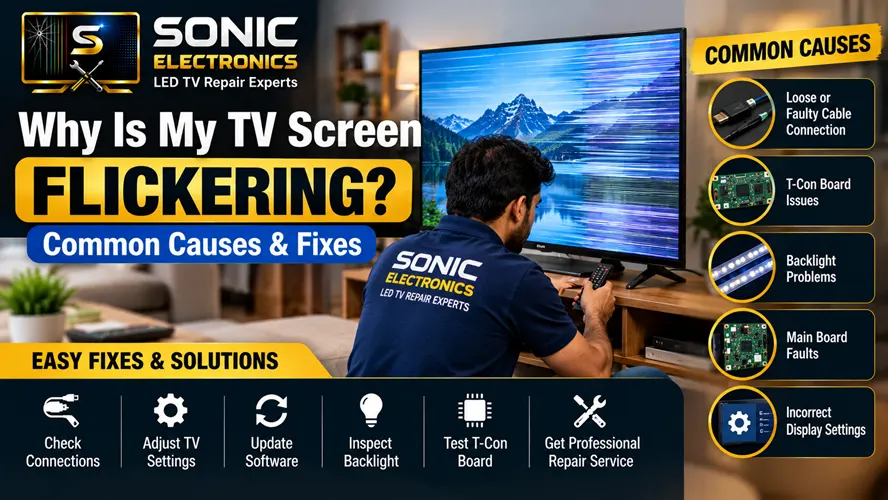
You sit down to relax, press play, and something’s off. The picture shimmers. It pulses. Maybe it blinks every few seconds like a faulty streetlight, or flashes bright and dark when the scene changes. It’s distracting, a little worrying, and, if you’ve ever tried to ignore it, more than a little headache-inducing.
The good news is that a flickering TV isn’t automatically a dying TV. Flicker has a surprisingly long list of possible causes, and many of them are cheap or even free to fix. The trick is working out which one you’re dealing with. Let’s go through the most common culprits, starting with the easiest.
First, Notice When and How It Flickers
Before you touch anything, spend a few minutes watching carefully. The pattern of the flicker is your best clue.
- Does it happen on every input, or only on one device like your cable box or game console?
- Does it flicker constantly, or only in dark scenes, bright scenes, or when the TV warms up?
- Is it the whole screen, or just a section or a few horizontal lines?
- Does it happen in the TV’s own menu screen?
That last question matters a lot. If the menu flickers, the problem is almost certainly inside the TV. If the menu looks perfectly steady and only one source flickers, the TV is probably fine and the culprit is whatever you’ve plugged into it.
Loose or Damaged Cables
This is the number one cause, and it’s the first thing to check. HDMI cables carry a lot of data, and when a connector is loose, bent, or worn, the signal can drop in and out, causing flickering, flashing, or random black screens.
What to try: Unplug the HDMI cable at both ends and plug it back in firmly. Try a different HDMI port on the TV. If you have a spare cable, swap it in. Cheap, older cables that struggle with 4K or high-refresh-rate content are a frequent offender, so consider a certified high-speed cable if yours is a mystery brand from years ago.
Power and Surge Problems
TVs are sensitive to unstable electricity. A worn extension cord, an overloaded power strip, or a faulty wall socket can cause the set to flicker, especially when other appliances like a fridge or air conditioner switch on nearby.
What to try: Plug the TV straight into a wall outlet instead of a shared strip. If the flicker stops, you’ve found your answer. A good quality surge protector is a worthwhile investment either way, since voltage spikes can quietly damage a TV’s internal boards over time.
Picture Settings That Cause Flicker
Sometimes the TV is working perfectly and its own clever features are the problem. Several settings can create a flickering effect:
- Auto brightness or ambient light sensing: The TV constantly adjusts brightness to your room’s lighting, which can look like flicker.
- Energy saving or eco mode: This dims the backlight dynamically based on the picture.
- Local dimming: On some LED sets, the zones behind the screen switch on and off, which can appear as pulsing in dark scenes.
- Motion smoothing: This sometimes creates odd flashing or shimmering effects.
What to try: Go into the settings menu and turn off auto brightness, eco mode, and motion smoothing one at a time, testing after each change. You’ll quickly see whether one of them was the troublemaker. A factory reset of the picture settings can also help if you’ve tweaked things over the years.
Refresh Rate and Source Device Issues
If the flicker only appears with a game console, streaming stick, or PC, check the output settings on that device. A mismatch between the device’s resolution or refresh rate and what the TV can handle can cause flashing. Lowering the output resolution temporarily, say from 4K to 1080p, is a quick way to test whether this is the cause.
Outdated Software
Smart TV Repair run software, and software has bugs. A firmware glitch can cause flickering, freezing, or random screen blinks. Manufacturers regularly release updates that quietly fix display problems.
What to try: Open the TV’s settings, find the software update option, and install anything that’s available. If the problem started right after an update, a factory reset sometimes clears out the conflict.
Backlight Trouble
If the flicker is strongest when the screen is dark, or the picture pulses and dims irregularly, the backlight may be failing. LED backlights wear out with age and heat, and a weakening strip or a faulty driver can produce flicker long before it dies completely. You may also notice that the picture seems dimmer than it used to be.
This is a hardware fault, and it usually needs a technician. The repair, replacing the LED strips or the backlight driver, is common and often cost-effective for medium and large TVs.
Failing Internal Boards
When the flicker appears even in the TV’s own menu, and also comes with lines, color distortion, or a screen that sometimes goes black, the T-con board, the power board, or the main board may be failing. A telltale sign is flicker that gets worse as the TV heats up, or that you can sometimes fix by gently tapping the set (please don’t make a habit of that!).
These boards are replaceable, and a qualified technician can pinpoint which one is at fault. Opening the TV yourself is risky, since power components can hold a dangerous charge even when unplugged.
When to Repair and When to Replace
To decide, get a written quote and compare it with the price of a similar new TV. If the repair costs less than about half the replacement price, and your TV is only a few years old, fixing it usually makes sense. For a much older or budget set, a new TV may be the smarter buy. If the TV is still under warranty, contact the manufacturer first, because the repair might be free.
A Simple Troubleshooting Order
- Check the TV’s menu screen to see if it flickers there too.
- Reseat or replace the HDMI cable and try another port.
- Plug the TV directly into a wall outlet.
- Turn off auto brightness, eco mode, and motion smoothing.
- Lower the resolution on your connected device.
- Update the TV’s software, then try a factory reset if needed.
- Call a technician if the flicker persists, especially in dark scenes or with other symptoms.
The Bottom Line
A flickering screen is annoying, but it’s rarely a mystery without a solution. Work from the simplest causes toward the more serious ones, and you’ll often find the fix in a cable, a setting, or a power outlet. And if it does turn out to be a failing backlight or board, you’ll walk into the repair conversation knowing exactly what you’ve already ruled out, which saves time, money, and a lot of squinting at the screen.